
It’s been a while since technology has made me really excited. In a world where computers and instant gratification has taken over one can so easily get lost in it all. But then every once in a while something magical comes around – like die-cutting machines and in specific The Silhouette CAMEO®.
Scrapbooking & technology – The Silhouette CAMEO®

Now bear in mind there are loads of brands available on the market but for now – this is the one that makes my skip a beat or two.
I am very sceptical when it comes to gadgets – simply because I know how quickly they can lose their magic in terms of everyday use. But I think this one may be a keeper… So while the iron is hot – I suggest you strike NOW!
The appeal for me was the fact that I could draw or create my own images and cut them – something unique and different to everyone else. So here’s what I came up with.
Colour outside the lines layout
I wanted to create fun paint splatters that I could cut with the Silhouette in different colours and sizes and now was the perfect opportunity. As a bonus we are offering you the paint splats as a free download image (right click on the splatter links and click “Save link as” or “Save target as” splatter 1 and splatter 2), and an easy introductory explanation of how I created my paint splats into images that can be cut to use on my layout.
What you need to know, is that an image can be cut with the Silhouette – but you need to first import them into your Library, from which you can then add them to the page, trace the image outline and then cut the images – in laymans terms and a quick explanation of what I did. So here goes…
-
Step 1
Open the Silhouette Studio Software. Click onto the File tab in the top left hand corner and select Import, Import to Library – You can create different Libraries of where you keep your images i.e images that comes preloaded on the machine, your own designs, downloaded images, and then you can also categorize them into themes like animals, school, love etc.
*At this time, I will also load the material into the machine. Make sure the Silhouette is turned on, press the enter button to load the cutting matt

-
Step 2
Select the image you want to import into your Library to cut. This can be a PNG, JPG, TIF, BMP, and GIF image. Click OK and the images will load into your Library.

-
Step 3
Now that the images is in your Library, double click the image to open it onto your page that represents the cutting matt and material that will be cut in the Silhouette

-
Step 4
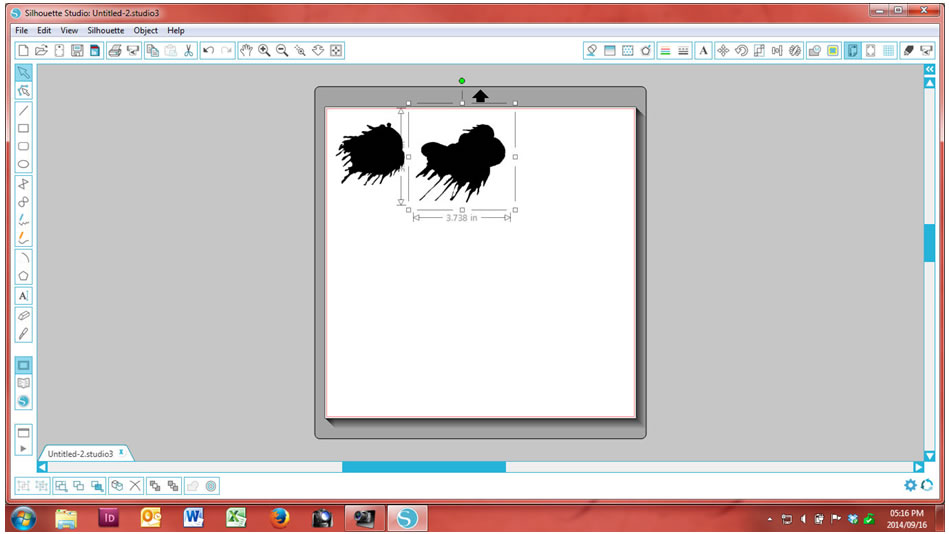
I added both the paint splat images onto my page at the same time. You can now size the images to the size you want to cut them. Remember to hold the Shift key in while resizing to resize the image proportionally.
-
Step 5
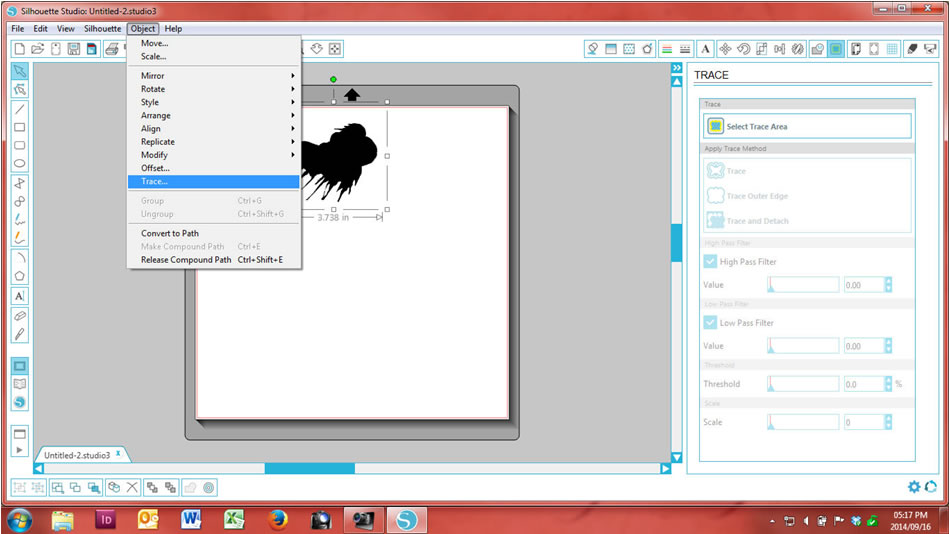
The next step is to trace the outline of the images so that the Silhouette can recognize the cut lines. Click on the object and then on Trace
-
Step 6
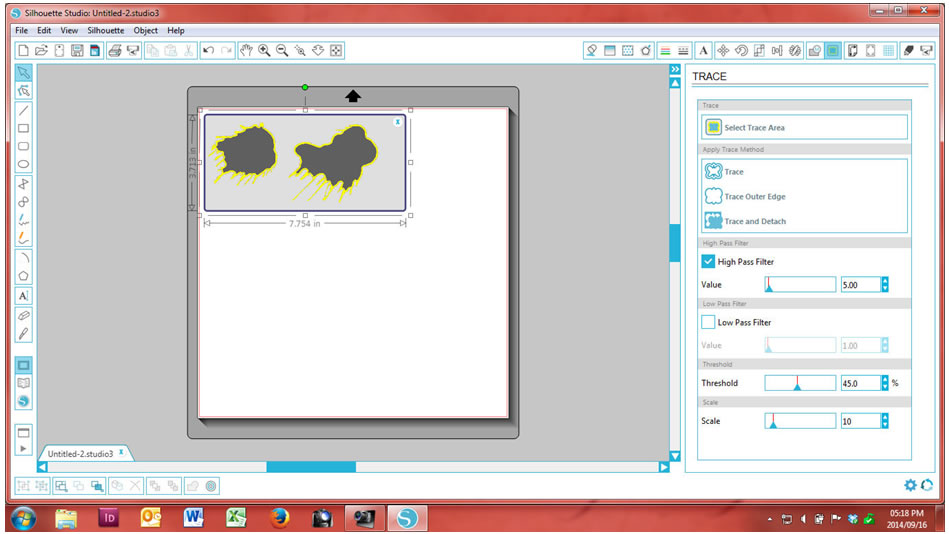
You need to select the trace area by drawing a block (selection) around the images
-
Step 7
On the right hand side, select trace outlines. The images will get a red line around them. You can now click on the black images and delete them leaving the read outlines only

-
Step 8
Click on the send to Silhouette icon(highlighted blue below). The red lines of the images will go slightly thicker. Click start on the right hand side to start the cutting process.
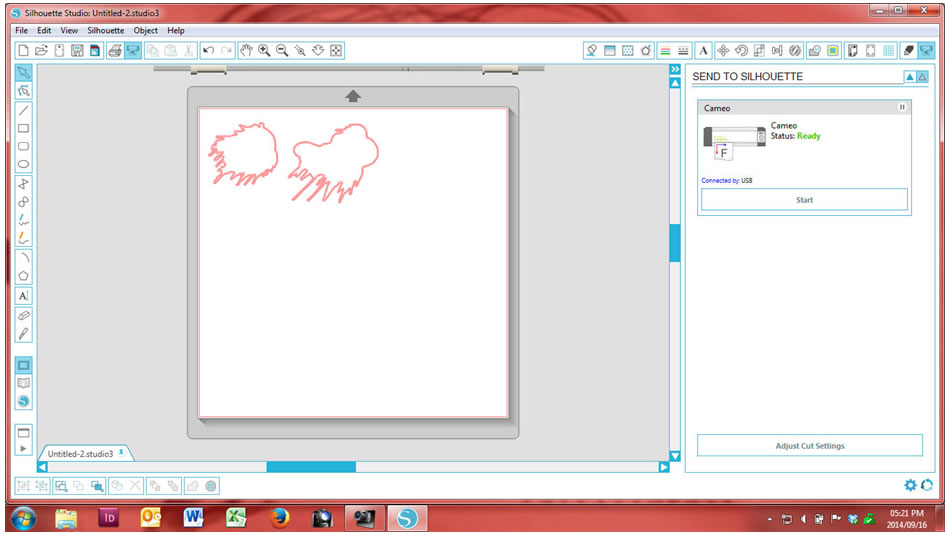
Remember to save your images – click File, then save to library so that you can use it in future again and again.


This is a quick and easy Silhouette Studio tutorial visual on how to get started. Watch out for more tips and tricks on cutting and using your new Silhouette CAMEO® machine – it will truly change your life!

Click here to see all the Silhouette electronic cutting tools currently available in South Africa!

10 Comments.
this is FANTASTIC!! Jowilna Nolte – the layout and the tutorial is amazing!!! I have a question – what cardstock did you use?
ooo thanks so much for the inspiration on this one. I think I best dust off my silhoutte and see about getting it connected and then using it!
My favorite smooth American Crafts cardstock Cariena Basson – it is awesome!
Thank you!! That’s what I hope you would say! It is awesome cardstock! Silhouette Owners – ask your LSS to order you this paper! It cuts like a dream!!!
PS. I used the American Crafts smooth cardstock for cutting my paint splats!
….and there is no shortage of options either!! Soooo much to choose from: http://bit.ly/AC-Cardstock
Sorry, did I miss something? I followed the tutorial but could not find links to splatters to download. Could you please tell me where to look as it would like to try this on my Silhouette. Thank you. Kind Regards, Thora Riddle
Hello Thora :)
I hope you are well today!
The links to the spatters (splatter 1 & splatter 2) are in the text above. Or you may use the links hereunder:
I only use AC cardstock in my Silhouette for layouts….just love it. :-)
I only use AC Cardstock. It cuts the best. The smooth cardstock cuts even better.Absolutely love my silhouette.